Format Coordinate System & Geometry of Layers
In our system, the geometry of each layer is represented by various layer types and parameters using a relative coordinate system.
Table of Content
- Grouping & Hierarchy
- Relative Timing
- Relative Blending
- Key Aspects of Geometry
- Layer Content
- Transformation
- Context (Layout) Size
- Content Size Calculation by Layer Type
- Special Group Cases ("Annotated Groups") and Geometry
Grouping & Hierarchy
The Replay format is using layers to describe the editing state. All layers are inside one single group called project group. Group is defining is defining a new transformation origin for the child layers, where the coordinate system center is equal to the group's center(width / 2, height / 2).
Hierarchy of Layers
Layers can be grouped and embeded in other groups, forming a tree hierarchy.
In our format groups of layers are represented by GroupLayer (IReplayGroupLayer).
- Can have children
- Can be a child of another
GroupLayer
Every layer can be nested (embedded) in a GroupLayer — as a child of this GroupLayer.
Layers different from GroupLayer can't have children.
Relative Timing
All layers have startTime property, which is also in a relative manner. The layer's startTime will be calculated from the parent group's startTime recursively, till the project start point.
In other words if the layer has startTime=3000 and the parent group startTime=2000, the layer will appear after 5000 milliseconds from the moment the parent group will appear on the scene(if the parent group is the canvas group, than it will mean from the beginning of the project).
Relative Blending
The group layer inside replay format has blendmode. If the layers are inside a group their blending is being applied inside that group. The resulting output will be applied as one canvas parent layer's blendmode value.
For example: if you have masked image it will result in having a group with blendmode source-over, which has 2 images layers inside - the original image layer to be masked with blendmode source-over, and the mask image layer with blendmode xor.
Key Aspects of Geometry
Geometry of each Layer consists of three main aspects:
- The size of the current content of this layer
- Transformation applied to this content (scale, position, rotation)
- Transformation applied to the parent (Group) of this layer (and to its parent, etc., up to the root layer)
Calculation of the content size is layer-specific and will be considered in the sections dedicated to each exact layer. Transformation of a layer, and transformation of a group of layers (how the group transformation affects its children) will be considered further.
Layer Content
Geometry of each layer includes:
- Content Size, specific to this exact layer
- Transformation, which structure is the same for every Layer type
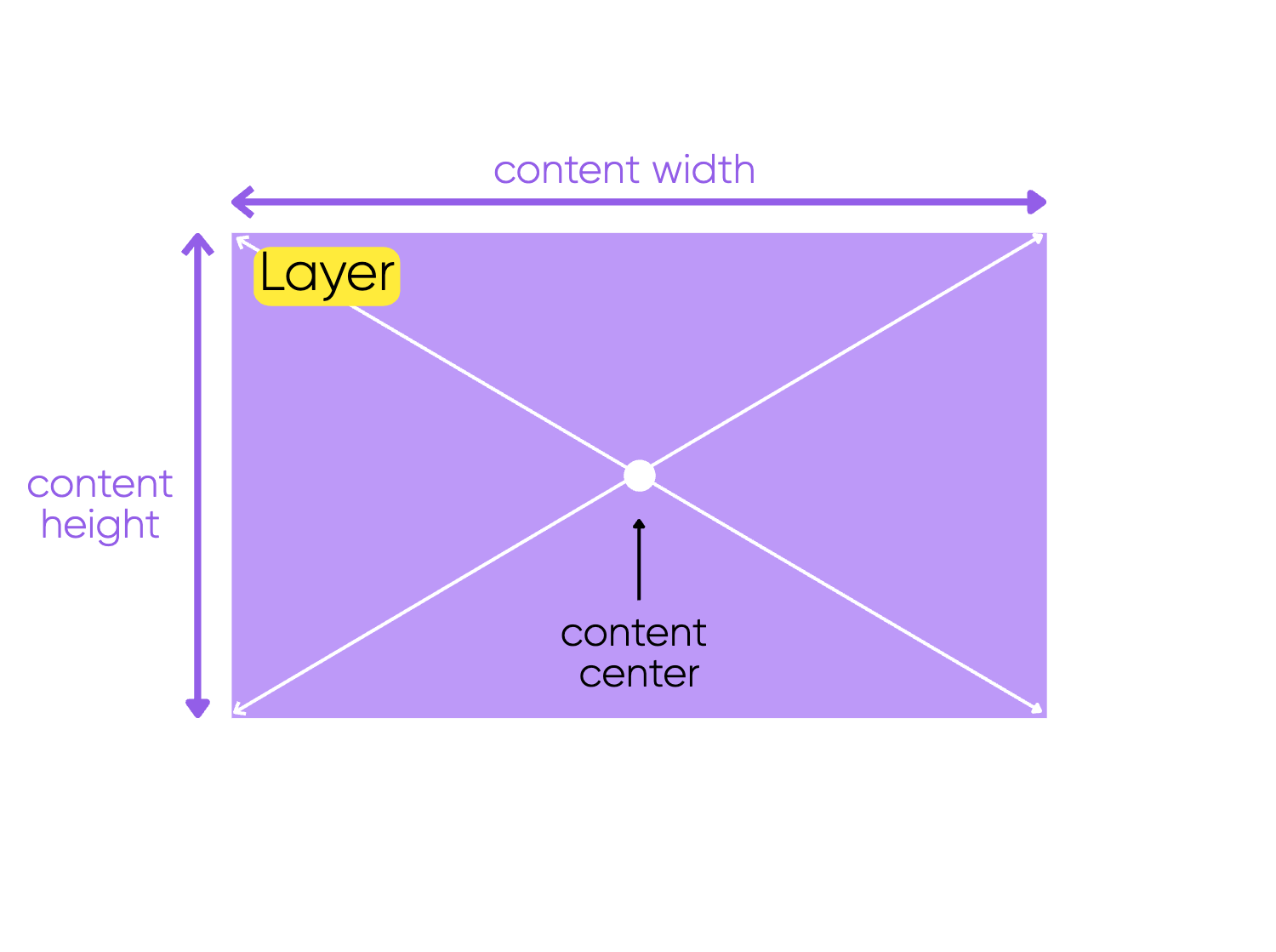
Content Size
The Content size of each layer depends on what this exact layer displays at the moment (which text, image, etc.).
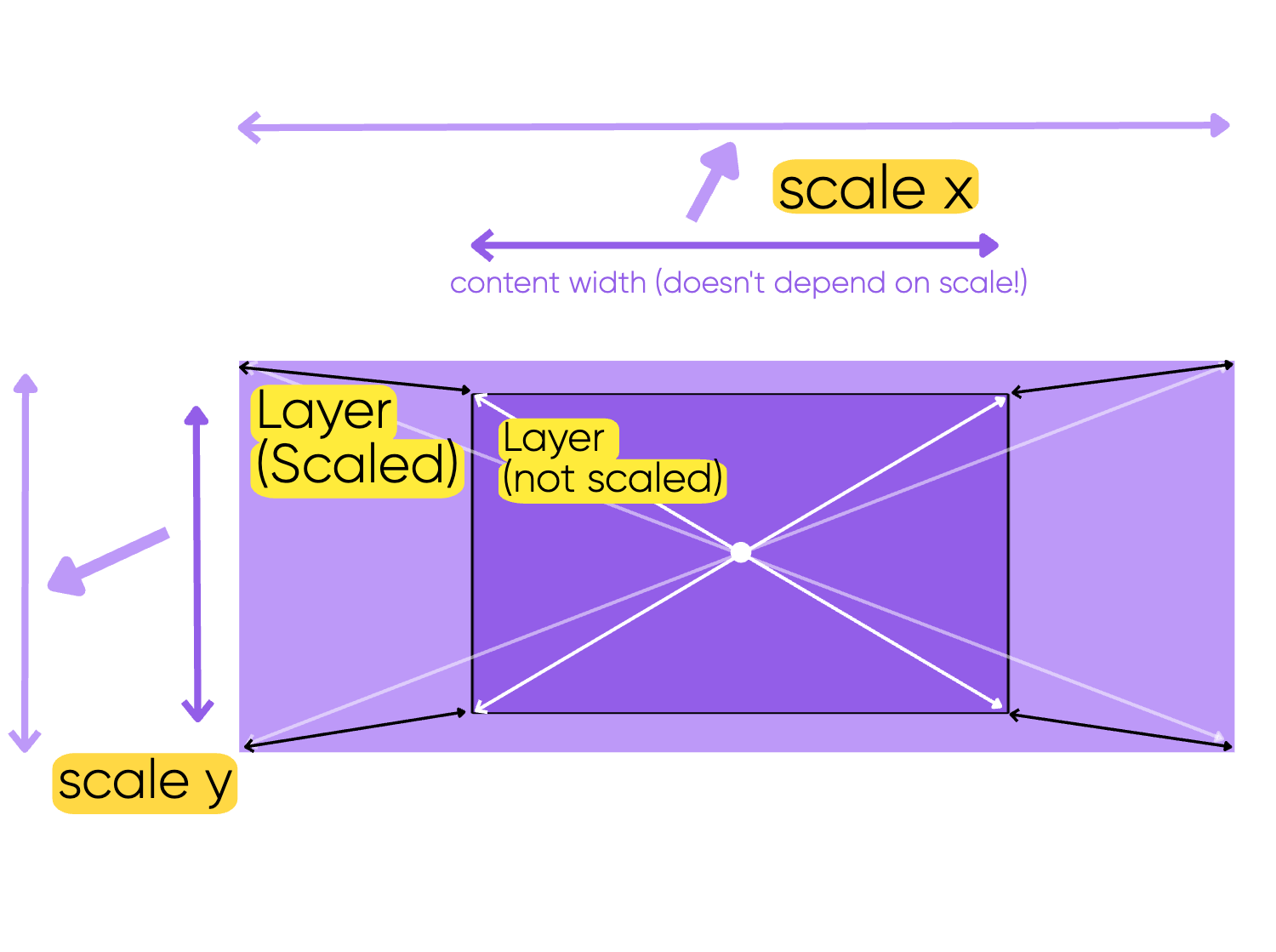
Scaling Transformation (IReplayLayerTransform.scaleX, and IReplayLayerTransform.scaleY) is applied to this size.
Relative and Absolute Sizing
The media resources that are supported in the Replay format not always have their own sizes(like texts, or svg's). So for the layer types that are using such media resources, there are width and height properties(not required that both will be present on the layer). The values must be interpreted like this:
0 means 0, 1 means equal to the parent's width or height accordingly.
Thus to resolve the layer sizes while rendering one should take a look at the layout of the context and recursively resolve the widths until it will reach the layer(e.g. if the layer is inside a group, which is inside a group, 3 calculation must take place for each side to be calculated)
This brings us to an important concept: size constraints of content rendering can be relative, "context dependent" — using the size of the parent group for its calculation.
Such dependency will be marked explicitly with the mark:
- [Parent Size Dependent] - size depends on parent
- [Parent Size Independent] - size is independent of parent
- [(Partly) Parent Size Independent] - mixed dependency
During rendering, the parent's transformation affects the visual ("pixel on screen") appearance of its children, but doesn't change their internal content size calculations. The [Parent Size Dependent] and [Parent Size Independent] marks refer to how a layer's content size is calculated, not how it's visually transformed by its parent once the content size is calculated.
If a layer is fully [Parent Size Dependent], or relative in other words, — its geometry can be "visually" adapted to changes happening in the ascending hierarchy (Canvas/Layout size changes, etc.) or during resource swapping without additional changes of the geometry properties.
If a layer is partly or fully [Parent Size Independent], changes of the ascending hierarchy, or resource switching will cause visual changes of this layer (during Replaying for example) without additional changing of geometry of this layer.
Example 1:
ImageLayer is fully [Parent Size Independent]. If we change the size (not via Transformation) of its parent, or of the canvas -> the pixel size of this image will not change.
Example 2:
ShapeLayer is fully [Parent Size Dependent]. If we change the size (not via Transformation) of its parent, or of the canvas -> the pixel (visual) size of this shape layer will be scaled correspondingly.
The corresponding size calculations for each layer type are described in detail in Content Size Calculation by Layer Type.
Content Center
During rendering, the system uses the center of the content size as the reference point for applying position and rotation transformations. This means that when you set x: 0, y: 0 in IReplayLayerTransform of your layer, the center of the layer will be positioned at the center of its parent's coordinate system (described later).
Relation between Content and Transformation
During rendering, the system first calculates the content size of the layer (e.g., the actual pixel dimensions of an image, rendered text size, etc), and then applies the transformation (IReplayLayerTransform) properties (scale, position, rotation) to that calculated size to determine the final visual appearance on screen.
Transformation
SDK Name: IReplayLayerTransform
Describes transformation, applied to the content of a layer.
Relative Positioning
SDK Name: IReplayLayerTransform.x, IReplayLayerTransform.y
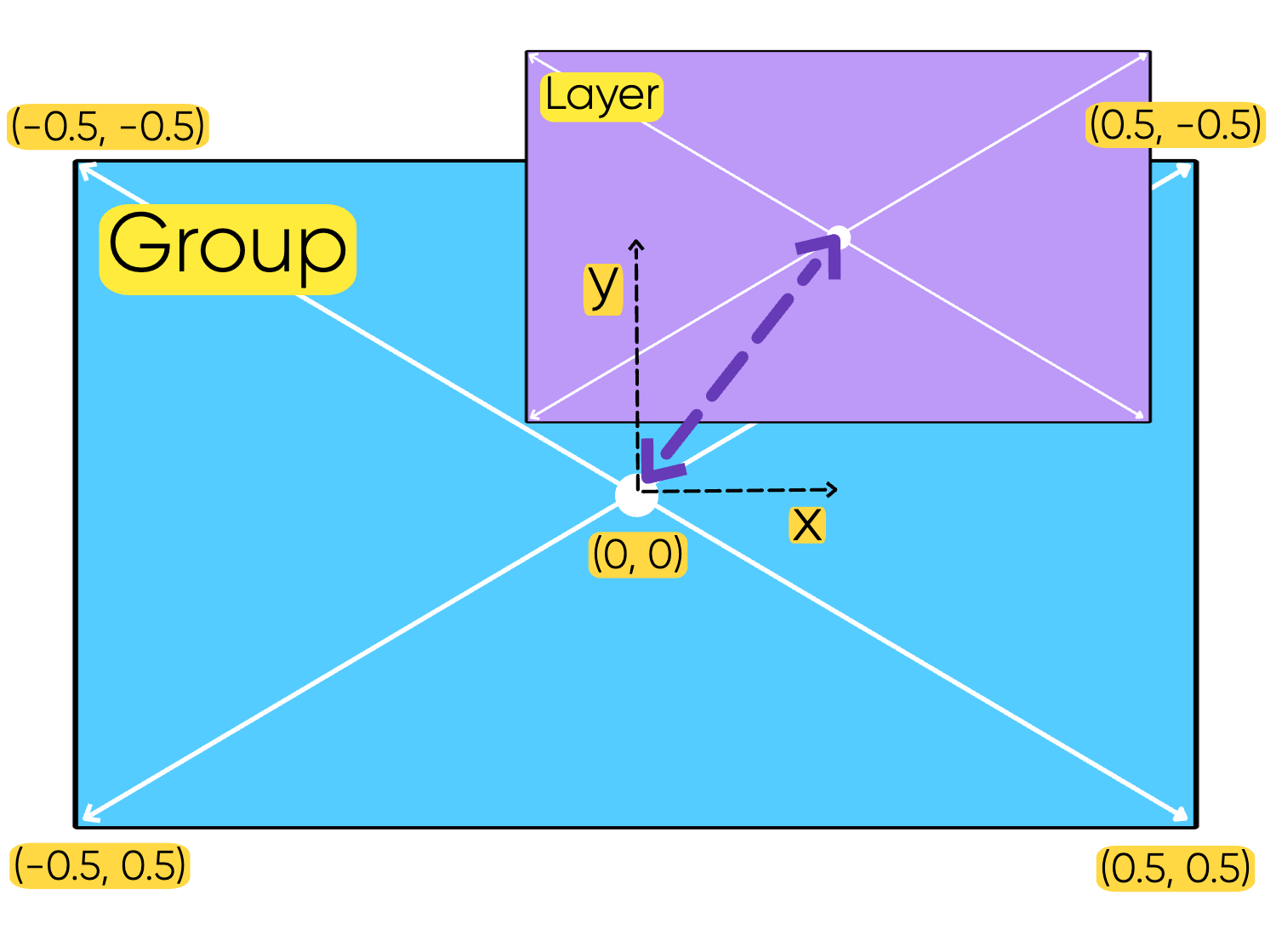
The Replay format is using relative coordinate space. Values like x, y, describing the position of the layer are given in a relative space, where 0 is 0, and 1 is equal to the layer's parent width. For example. if the layer x is 0.5, this means the x in absolute form must be rendered from the parent's x-axis width. Important to mention, that the coordinate system start points are calculated from the center point of each layer, which means applying (0, 0) value to x y will result positioning the layer in the center of it's parent.
Position of each layer is described by two properties: x and y, referring to the corresponding dimensions.
These values are in the parent's relative coordinate system, which center is the Content Center of the parent.
In other words the x, y are the difference between parent group center and the layer center in percentage calculated of parent group's width
(0, 0)- layer's center matches parent's center (default)(-0.5, -0.5)the layer center is in the top left corner of its parent(-0.5, 0.5)the layer center is in the bottom left corner of its parent(0.5, 0.5)the layer center is in the bottom right corner of its parent(0.5, -0.5)the layer center is in the top right corner of its parent(-0.5, 0)- the horizontal center of this layer is on the left edge of the parent, the vertical center matches the parent vertical center
The only absolute values in the format are given in the layout of the context. All the other layers, need to be calculated from that point when rendering.
If we change the position of a GroupLayer, all its children are moved within the group
Scaling
SDK Name: IReplayLayerTransform.scaleX, IReplayLayerTransform.scaleY
Scale value applied to the content of this layer.
1- no scaling (default)0.5- scaled to 50%2- scaled to 200%-1- flipped (mirrored)-0.3- scaled to 30% and flipped
When scaling the coordinate system all the underlying layers will be scaled automatically, with the full nesting.
In other words, if the layer inside a group has scaleX = 2 and the group itself has scaleX = 1.5, this will result in scaleX = 3 for the layer. If we'll add one more group over the existing one with scaleX = 0.1, than the results of scale by x coordinate will be equal to 0.15 and 0.3 for group(already a child) and layer accordingly.
If we change the Scale of GroupLayer, all its children are scaled within the group regardless, even if their content is fully [Parent Size Independent]
Relative Rotation
SDK Name: IReplayLayerTransform.rotation
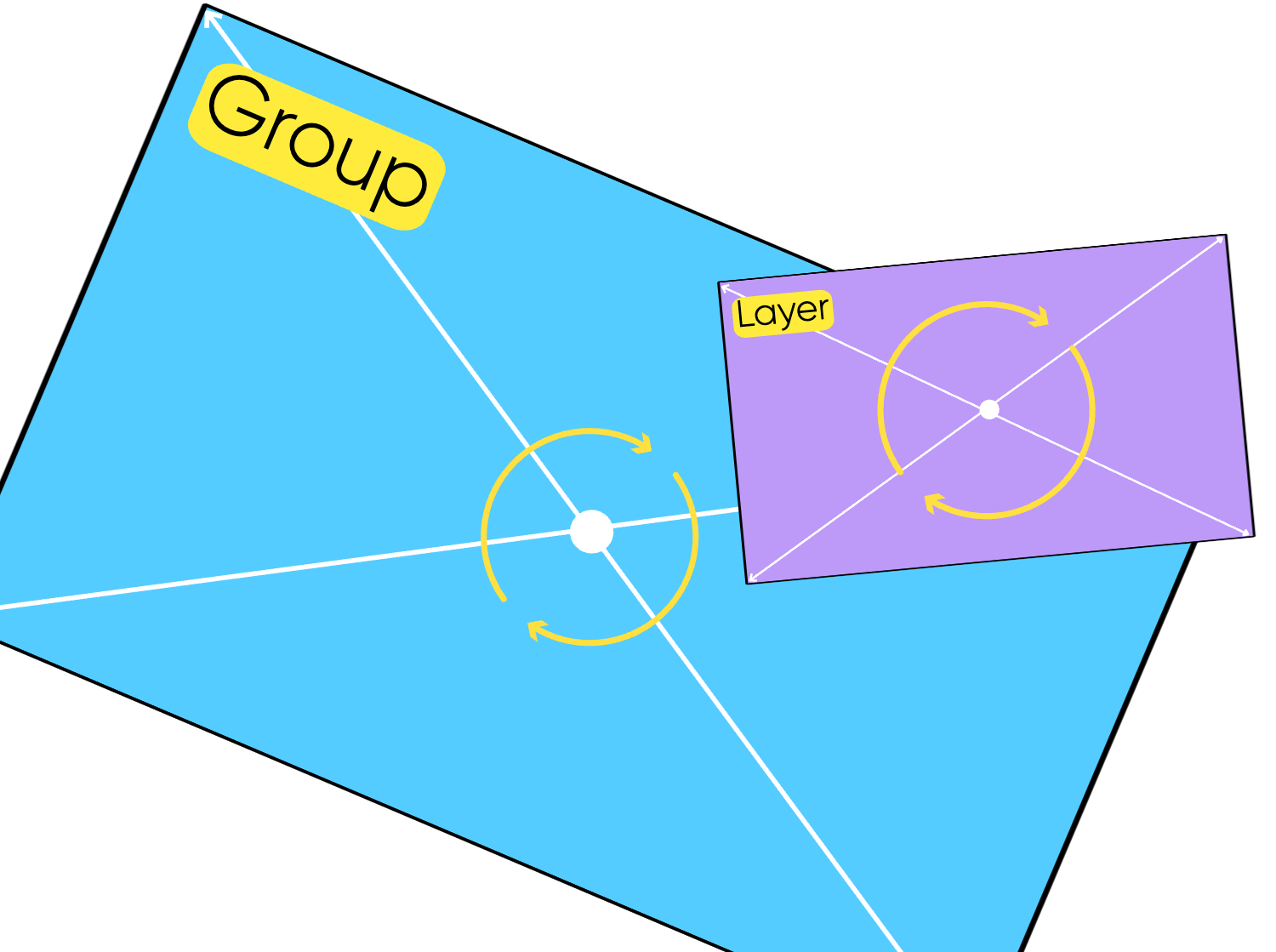
Rotation of the layer, relative to its parent, in degrees.
0- no rotation (default)90- rotated clockwise by 90 degrees180- rotated clockwise by 180 degrees
If we change the rotation of a GroupLayer, all its children are rotated within this group
Context (Layout) Size
SDK Name: IReplayLayout.width and IReplayLayout.height inside IReplayContext.layout
This is the root size, from which we are starting the layout process — calculation of the sizes and other properties to render on screen.
change this size to change the project size.
change the size of the canvas group to change the size of the correponding canvas. Do not forget, that the size of the canvas group is relative.
If you:
- change this size not keeping its ratio (in other words, not proportionally)
AND and the same time:
- do not change sizes of [Parent Size Dependent] layers (
GroupLayer,ShapeLayer,VisualLayer) correspondingly,
such layers will change their visual sizes non-proprtionally as well.
[Parent Size Independent] Layers (ImageLayer, VideoLayer) won't reflect changes of this property.
All TextLayer isntances of this project mayd change their line breaking if this width is changed.
Content Size Calculation by Layer Type
GroupLayer
Content Size: [Parent Size Dependent]
SDK Name: IReplayGroupLayer
IReplayGroupLayerProps.width- Relative to parent width0.5- half of parent width0.25- 25% of parent width1.5- 150% of parent width
IReplayGroupLayerProps.height- Relative to parent height0.5- half of parent height0.25- 25% of parent height1.5- 150% of parent height
The size of a GroupLayer doesn't depend on the size of its children!
ImageLayer
Content Size: [Parent Size Independent]
SDK Name: IReplayImageLayer
The content size of the image layer is the exact pixel size of the Image (Resource) it is rendering at the moment.
The size value is cached in IReplayPhotoResource.width and IReplayPhotoResource.height properties stored in IReplayImageLayerProps.image.
The source of truth for the content size of an image layer is the actual image loaded from its resource URL. If the cached width and height values in IReplayPhotoResource differ from the actual dimensions of the loaded image, the editor will use the loaded image's dimensions during layout.
VideoLayer
Content Size: [Parent Size Independent]
SDK Name: IReplayVideoLayer
The content size of the video layer is the exact pixel size of the Video (Resource) it is rendering at the moment.
The behavior is similar to ImageLayer but the resource is not cached in any proeprties.
ShapeLayer
Content Size: [Parent Size Dependent]
SDK Name: IReplayShapeLayer
As Shape rendering is vector graphics, data of ShapeLayer doesn't have strict pixel size restrictions, and its size is relative to the parent size. The content size of a ShapeLayer is the bounding box in which the current data is drawn.
The first priority data to render is IReplayShapeLayerProps.paths.
IReplayShapeLayerProps.width- Relative to parent width0.5- half of parent width0.25- 25% of parent width1.5- 150% of parent width
IReplayShapeLayerProps.height- Relative to parent height0.5- half of parent height0.25- 25% of parent height1.5- 150% of parent height
Shape Path Geometry
The rendering source of truth for a Shape Layer are IReplayShapePath items stored inside IReplayShapeLayerProps.paths. The paths there are relative:
(0, 0)- top left corner of the calculated bounding box(0, 1)- bottom right corner of the calculated bounding box(0, 1.3)- outside the bounding box, but on the line of the left edge
VisualLayer
Content Size: [Parent Size Dependent]
SDK Name: IReplayVisualLayer
As VisualLayer rendering is generic and pluggable. Data of VisualLayer doesn't have strict pixel size restrictions, and its size is relative to the parent size. The content size of a VisualLayer is the bounding box in which the current data is drawn. The associated Renderer determines how to render its current data inside the calculated viewport.
IReplayVisualLayerProps.width- Relative to parent width0.5- half of parent width0.25- 25% of parent width1.5- 150% of parent width
IReplayVisualLayerProps.height- Relative to parent height0.5- half of parent height0.25- 25% of parent height1.5- 150% of parent height
TextLayer
Content Size: [Partly Parent Size Dependent]
SDK Name: IReplayTextLayer
The text of a TextLayer is stored as a list of ranges (IReplayTextLayerRange) inside IReplayTextLayerProps.ranges property.
Text Layout is quite a tricky thing. Its result depends on different factors and parameters.
Text Box Width
Type: Relative to parent width
SDK Name: IReplayTextLayerProps.width
The bounding width, chosen by a user or programmatically, which constraints the typographic layout of this text.
width examples:0.5- half of parent width0.25- 25% of parent width1.5- 150% of parent width
It's the upper constraint of the width, so it can be larger than the "visual" text width
Sometimes it can be smaller than the visual width: for "artistic" fonts "very long decorative elements" of glyphs are not counted
As this value is used as the width constraint, it affects line breaking — the set constraints are always met, the text is split into lines if needed to make its width less-or-equal to the value
If you change width of any ascending GroupLayer (including the canvas and project root groups),
and do not change properties of all text layers correspondingly,
line breaking can change in all text layers inside this group (more precicely, in the whole subhierarchy of this group).
Changing width of layout size can cause the same effect.
Text Box Height
Type: Calculatable
The "visual" ("image") height of the text, which vertically bounds all the drawn pixels. This value is never stored, it's calculatable during each rendering.
Since the text height is calculated during the layout process, we cannot determine it independently from rendering. Therefore, we cannot calculate the vertical size of a text layer by manipulating only an instance of IReplayContext.
The text must first be rendered (laid out) using all relevant Layer parameters to determine its exact height.
Consequenty, we cannot perform on a IReplayContext such things as a vertical alignement different from the center one: we are not able to calculate vertical (top and bottom) edges of a text.
Font Size
Type: Absolute
SDK Name: IReplayTextLayerRange.fontSize
The visual size of a rendered text, and the height in particular, depends first of all on the font size.
Each Text Layer can have more than one range, and each range can have its own font size.
The value is Absolute, Independent of the Parent's Content Size!
Special Group Cases ("Annotated Groups") and Geometry
Grouping and embedding allows us to have the power of composition for Layers.
For Product purposes, we have special cases of groups, we called them "Annotated Groups". Cases are recognized by specific values of the IReplayBaseLayer.mediaType property of this group (IReplayGroupLayer).
Examples: Collages, Cropped Images, Masked Layers, etc.
Even if "the annotation" (special mediaType) is erased, the recovered and rendered editor state (IReplayContext) has to be visually identical, including Geometry of all recovered layer.
We have an IReplayContext which contains a collage.
If we are mutating this context, erasing mediatypes of Groups representing cells and the entire Collage, and then we are recovering the mutated context
-> the visual result (exported image / editor state) has to be identical as if it was the original IReplayContext.
But, of course, Collage Editing tools may not be available — the collage becomes a group of groups of an image and its masking shape.